
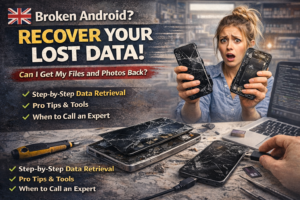

I still remember the exact moment a customer walked into our shop holding her phone in two pieces. She had dropped it on the marble flooring. The screen was completely black, the glass was shattered, and the first thing she said was not about fixing the phone. She said, My daughter’s first birthday photos are in there. Please tell me they are not gone.
That moment is exactly why I wrote this guide.
If your Android phone is broken right now and your data feels trapped inside it, I want you to take a breath. In most cases, recovering data from a broken Android is absolutely possible. The outcome depends on the type of damage, whether you had backups running, and how quickly you act from this point forward.
Before you try anything, here is one thing that matters more than anything else: stop using the phone immediately. Every action you take on a damaged device, whether charging it, pressing buttons repeatedly, or installing unknown apps, can reduce your chances of a successful Android data recovery. The data is not necessarily gone. But what you do next determines whether it stays recoverable.
By the end of this guide, you will know exactly what your options are, which tools actually work, when to handle it yourself, and when you need a professional for broken Android data extraction.
What Will You Learn Here?
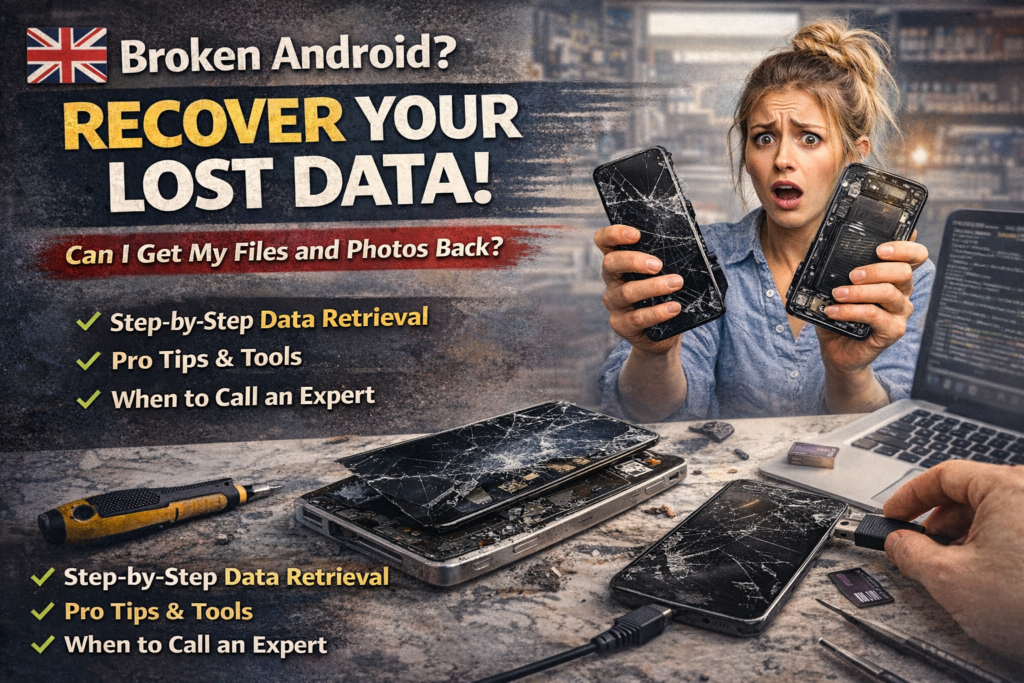
Here is a quick summary of everything this guide covers:
- Whether recovering data from a damaged phone is realistic, based on your situation
- The three main recovery paths available to you
- The best Android data recovery software that actually delivers results
- When DIY methods stop working, and professional help becomes necessary
- Real case studies from our repair shop experience
- How to protect yourself from this happening again
Can I Really Recover Data from a Broken Android Device?
Yes, in most cases you can. But the honest answer is that it depends entirely on what is actually broken.
The word broken covers a wide range of situations. A cracked screen with a working phone underneath is very different from a device that took water damage and will not power on at all. Success rates vary dramatically between these scenarios.
Here is a realistic overview:
| Damage Type | Recovery Chances | DIY Possible? |
| Broken screen, phone works | Very High (85–95%) | Yes |
| Touch not responding | High (75–85%) | Yes, with tools |
| Phone not turning on | Moderate (50–70%) | Sometimes |
| Water damage | Moderate (40–65%) | Risky, get help |
| Motherboard failure | Low (20–40%) | No, professional only |
| Physical crush damage | Very Low (10–25%) | No |
The most important thing I tell every customer is this: the longer you wait and the more you attempt without knowing what you are doing, the lower your chances become.
What Type of Damage Does Your Android Have?
Cracked or Black Screen
This is the most common scenario we see. If your phone vibrates, makes sounds, and generally responds to input, but the screen is dark or cracked beyond use, your data is almost certainly still intact. The internal storage is fine. You just cannot see what is on it.
This is the easiest situation for Android screen-broken data recovery, and multiple methods work well here.
Water Damage
Water-damaged Android recovery is more complex. Water does not instantly destroy data. But it causes corrosion over time, and the longer it sits, the worse it gets. If your phone got wet, power it off immediately if it is still on, dry it out, and do not try charging it yet.
Many people lose their data not because of the water itself but because they plugged in their phone too soon, causing a short circuit.
Phone Not Turning On
A dead phone file recovery situation is stressful but often solvable. Sometimes the battery is simply drained beyond the point of normal charging. In other cases, a software fault is preventing the boot sequence. And sometimes, it is a genuine hardware failure.
The fix depends entirely on the root cause, which is why diagnosing before acting is so important.
Touch Not Working
If your screen displays fine but the touch layer is unresponsive, you can still access your phone using an OTG adapter connected to a mouse. This is one of the most underused and effective methods for broken touch screen data transfer, and most people do not know it exists.
What Is the Easiest Way to Recover Data from a Broken Android?
Using Google Backup
If you had Google Drive backup running before the phone broke, this is your fastest path to recovery. Sign in to your Google account on any Android device, and your contacts, app data, call history, and some media will restore automatically.
Go to Settings, then Google, then Backup to check what was being backed up and when the last backup occurred.
Restoring from Cloud Services
Google Drive
Google Drive stores documents, files you manually saved, and app backups. If you had set your photos to back up automatically through Google Photos, every image taken before the phone broke is already safe in the cloud.
Google Photos
Open Google Photos on any browser and log in to the same account. If backup was enabled, your entire photo library is sitting there untouched. This is the one backup feature I wish every Android user had turned on from day one.
If you never set up cloud backup, do not worry. There are still options.
How Can I Recover Data If My Android Screen Is Broken, but the Phone Still Works?
This is the best-case scenario, and there are three reliable methods.
Using OTG and a Mouse
Plug an OTG adapter into your phone’s charging port, then connect a USB mouse. If your phone recognizes it, you can now navigate the screen using the mouse pointer. From there, you can enable USB debugging, connect to a PC, or transfer files directly.
Screen Mirroring Methods
Some Android devices support wireless screen mirroring even without unlocking the screen. Apps like Vysor or scrcpy can mirror your phone’s display to a PC if USB debugging was already enabled before the screen broke.
This is one of the reasons I always recommend enabling USB debugging on your phone as a precaution, even if you never plan to use it. It takes thirty seconds and can save hours of recovery work later.
Connecting to PC
If Android USB debugging was already turned on, simply connecting your phone to a Windows PC via USB cable may give you direct access to the internal storage. Windows will recognize it as a drive, and you can copy everything off without any special software.
Our Android device repair and data access service includes this exact process for customers who bring in phones with working internals but non-functional screens.
How Do I Recover Data from a Phone That Won’t Turn On?
Charging and Power Fixes
Sometimes the fix is this simple. Leave the phone plugged into the original charger for at least 30 minutes before trying to power it on. A completely drained battery can prevent the phone from showing any signs of life, even when it is technically fine.
Booting Into Recovery Mode
If the phone responds at all to button presses, try booting into Android recovery mode. This is done by holding the power button and volume down simultaneously on most devices. From recovery mode, you may be able to perform a backup or wipe without accessing the main interface.
When Hardware Damage Blocks Recovery
If the phone fell hard, was submerged, or experienced a power surge, the motherboard damage recovery situation requires a professional. At this point, DIY attempts can permanently damage the storage chips and make even lab-level recovery impossible.
If you suspect hardware-level failure, the wisest thing to do is stop and bring it to someone who works with these issues regularly. At Fone World, our phone hardware diagnostics and recovery team handles these exact situations.
Can I Recover Data Without USB Debugging Enabled?
This is where people run into real frustration.
USB debugging is a developer option that allows a PC to communicate directly with your Android’s file system. Without it being enabled before the phone broke, most ADB data recovery Android methods will not work.
However, there are workarounds. OTG mouse access can sometimes allow you to navigate into Settings and enable it manually. Some older Android versions also have less strict permissions that allow read-only file access without debugging enabled.
The truth is, if debugging is not enabled and the screen is unresponsive, your options narrow significantly. Professional data recovery services use specialized hardware tools that can bypass this limitation in many cases.
What Are the Best Tools to Recover Data from Broken Android Devices?
| Tool | Best For | Free or Paid | Notes |
| Dr.Fone | Broken screen recovery | Paid | Most reliable, user-friendly |
| Tenorshare UltData | Dead phone recovery | Paid | Good for iOS and Android |
| iMobie PhoneRescue | Photos and contacts | Paid | Strong media recovery |
| DiskDigger | Deleted files recovery | Free/Paid | Works best on rooted devices |
| EaseUS MobiSaver | General file recovery | Paid | Decent success on working devices |
| ADB (Android Debug Bridge) | Technical users | Free | Requires USB debugging to be enabled |
I want to be honest with you about these tools. They work well in specific situations, mainly when the phone powers on and USB debugging is enabled. If neither of those is true, software solutions have serious limitations regardless of what the marketing says.
Is It Safe to Use Android Data Recovery Software?
Some tools are legitimate, while many are not.
The biggest risk is downloading recovery software from unofficial sources. These often contain malware that can overwrite the very data you are trying to save. Stick to well-known tools like the ones listed above and download only from their official websites.
Also, avoid any tool that asks you to root your phone as part of the recovery process. Rooting a damaged device adds risk on top of risk and can make the situation worse.
When Should You Go to a Professional Data Recovery Service?
Stop trying DIY methods and come in for professional help when:
- Your phone will not power on at all, and charging does not help
- You have already tried two or three methods, and the phone is not being recognized by your PC
- The phone shows signs of water damage or physical impact to the motherboard area
- The data involved is critical, such as business files, legal documents, or irreplaceable family photos
Professional Android data recovery services use hardware-level tools, clean room environments for serious cases, and chip-off techniques that read data directly from storage chips when all other methods fail.
The question I always ask customers is this: What is the data worth to you? If the answer is a lot, then professional recovery is almost always the right call.
Our professional data recovery for Android phones service has successfully recovered data from devices that were water-damaged, physically crushed, and completely unresponsive. The success rate at the professional level is significantly higher than DIY attempts on seriously damaged devices.
Can a Repair Shop Recover Data from a Broken Phone?
Yes, and this is actually one of the most common things a good repair shop does.
There is a difference between phone repair and data recovery. Repair fixes the device. Recovery extracts the data, sometimes even when the device cannot be repaired.
Before handing your phone to anyone, ask these questions:
- Do you have experience specifically with data extraction, not just screen replacement?
- Will the data remain private and confidential?
- What is the success rate for my type of damage?
- What happens if recovery is not possible?
A trustworthy shop will answer all of these honestly. A good phone data extraction and backup service will give you a clear assessment before charging you anything.
What Mistakes Should You Avoid During Android Data Recovery?
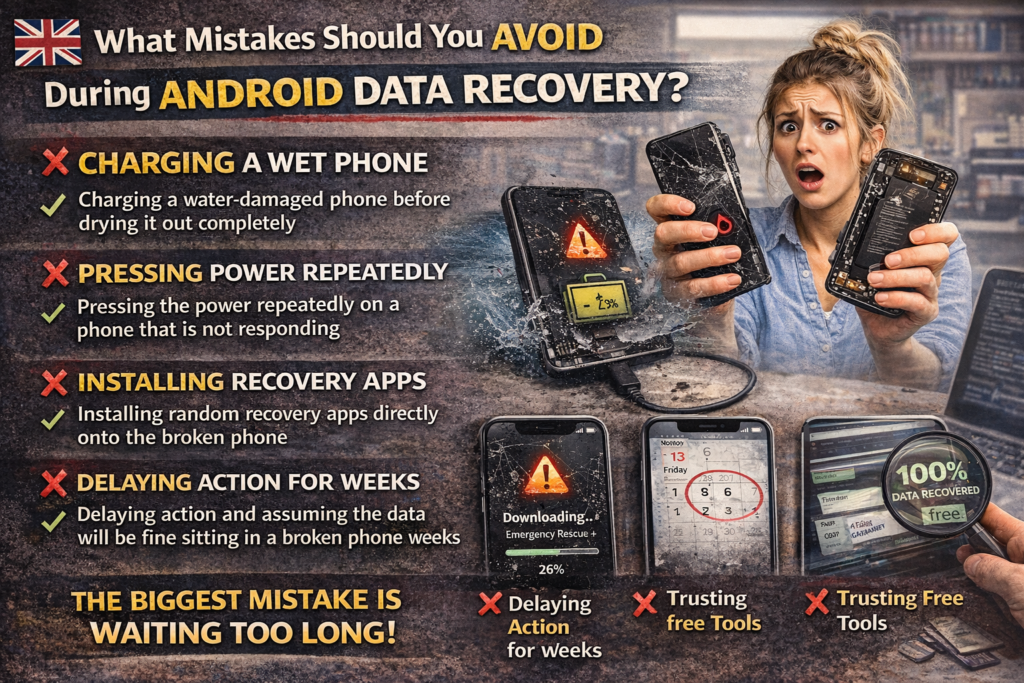
These are the mistakes I see most often, and they are all avoidable:
- Charging a water-damaged phone before drying it out completely
- Pressing the power repeatedly on a phone that is not responding, which can trigger an emergency wipe on some devices
- Installing random recovery apps directly onto the broken phone can overwrite deleted data
- Delaying action and assuming the data will be fine sitting in a broken phone for weeks
- Trusting free tools that promise 100% recovery rates, which is simply not realistic
The biggest mistake of all is waiting too long. Data that is technically recoverable today may not be recoverable in two weeks if the device degrades further.
Real Case Studies from Our Shop
Case Study 1: Broken Screen Recovery
A student brought in a Samsung Galaxy A53 with a completely shattered screen and no touch response. The phone itself was still powering on. Using an OTG mouse, we navigated to Settings, enabled USB debugging, connected to a PC, and transferred over 14GB of files, including three years of photos, in under two hours. Cost of the Android screen and data recovery service: significantly less than the irreplaceable value of what we recovered.
Case Study 2: Water Damage Recovery
A small business owner dropped his OnePlus 9 into a sink. He made the common mistake of trying to charge it immediately. When he came to us two days later, there was corrosion on the charging port, and the motherboard had minor damage. We performed a board-level clean, stabilized the device, booted it into safe mode, and recovered his contacts, WhatsApp chats, and business documents. The phone itself was not repairable, but the data was saved.
Can I Recover WhatsApp, Photos, and Contacts from a Broken Phone?
WhatsApp Backup Recovery
WhatsApp backs up to Google Drive automatically if you have it configured. Log in to a new device with the same number and Google account, and WhatsApp will prompt you to restore from the most recent backup during setup.
Photo Recovery Options
Google Photos is your best friend here. If automatic backup is on, every photo is in the cloud. If not, photo recovery from internal storage requires either a working connection to a PC or professional extraction tools.
Contacts Sync Recovery
If your contacts were synced with your Gmail account, they are already safe. Log in to any Android device with the same Google account, and your contacts will appear automatically within minutes.
How Can You Prevent This from Happening Again?
This step is the part most people skip, and then they are back in the same situation two years later.
Set up these three things today:
- Enable Google Drive backup under Settings, then Google, then Backup
- Turn on Google Photos automatic backup for all your images
- Sync your contacts to your Gmail account so they are always in the cloud
These three steps cost nothing and take less than five minutes. They will save you from ever being in a panic about Android data loss scenarios again.
Our Android backup and cloud setup guide is a useful starting point for more detailed help with setting up a solid backup system.